Manpages are something I’ve often underutilized, despite how useful they are. After spending some time researching them further, here are some takeaways and modifications that significantly improve my usage.
using the pager
By default, man uses the less pager to display documentation as pages in your terminal. As a result, it uses a lot of Vi-style keyboard commands that allow you to move around while rarely shifting your hands from the f and j keys.
A few of the most useful ones are:
j- scroll down a linek- scroll up a lined- scrolldown half a page. Useful for keeping visual context while scrolling quicker.u- scrollup half a pagePageUp/PageDown,b/<SPACE>keys - scrolls up/down an entire ‘page’ of content. While fast, I find it harder to visually track content.
The most common searches can be done with:
/- search downwards in the manpage:/searchpattern<ENTER>?- search upwards in the manpage:?searchpattern<ENTER>n- jump to thenext search resultN- jump to the previous search result.SHIFT+n, the reverse action ofn, is a common pattern in Vi commands.g-go to the bottom of the manpageG-Go to the top of the manpage. This used to be the way I restarted a new search from the top.*
*this is technically an anti-pattern that I picked up. Typing a / followed by <CTRL>f automatically jumps to the top of the page to restart the search while transforming your prompt to look like this:
First-file /searchpattern<ENTER>
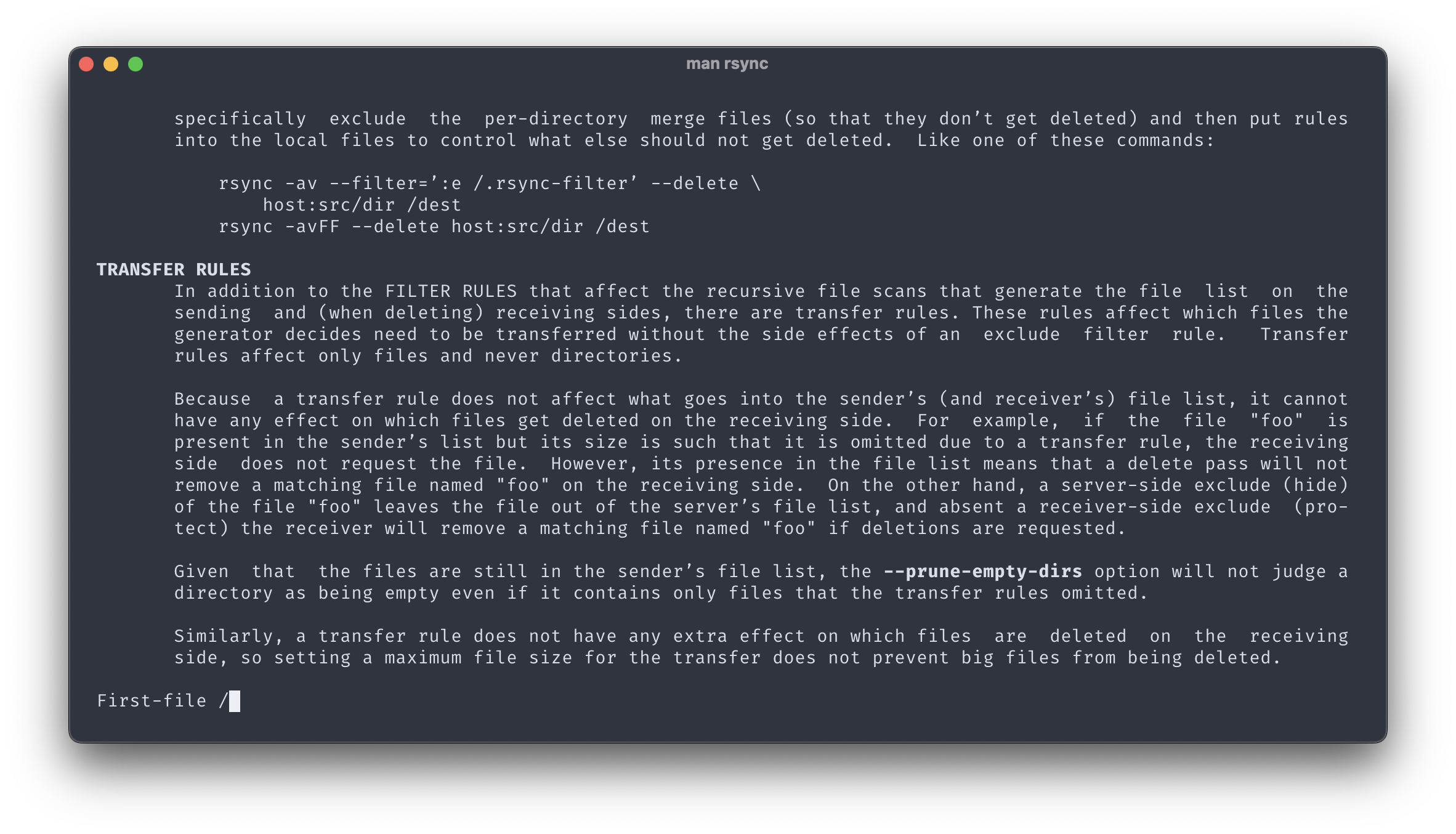
Continuing in the vein of more advanced search tricks, a few more are:
/<CTRL>k- show search results in the currently displayed screen area without moving/<CTRL>w- wrap your search around to restart at the opposite end of the page/<CTRL>r- disable the automatic regex when searching (searching in reverse would be?<CTRL>r)
The search line automatically uses regex, so special charaters such as ^ (start of line) will need to be escaped with a \ to be read literally; eg., /\^F<ENTER> to search for the literal characters ‘^F’.
To escape out of any of these prompts, use backspace to reset the search line (instead of frantically hitting q and Escape like I often do ;) )
customizing the pager
As nice as the above commands are, there are a few command line flags you can pass to less to make it play better and avoid using so many of them:
--ignore-case- by default,lessis case-sensitive. This ignores case, unless you begin typing uppercase letters.--use-color- colorizes various elements, including the status bar and search results--wordwrap- wraps words as they reach the right side of the terminal instead of hyphenating them. This avoid words being split with a hypen (-)--status-line- highlights the entire line that has amark. Marks are covered below.
The full list of flags to export for the MANPAGER variable is:
1 | export MANPAGER="less --ignore-case --use-color --wordwrap --status-line --lesskey-src=$HOME/.manpage-lesskey" |
The last two flags are covered in the next two sections respectively:
advanced usage with marks
A common problem I had when using very large manpages for tools like tmux was that I was constantly re-searching flags or keywords to check multiple sections (sometimes even opening up 2 tmux manpages).
However it turns out that you can ‘bookmark‘ sections of the manpage and jump between them! The process to do this is a little convoluted, but I’ve found it useful once I committed it to memory.
Assuming you have already found a position you would like to (book)mark:
- First, type
mfollowed by an upper- or lower-case letter:ma. If you enabled the--status-lineflag above, the top line in your pager will be highlighted. - Now, continue to another section of the manpage however you’d like (scrolling or through search)
- Then,
markthis new section with a different letter:mb - Continue however many times as needed…
- To jump to a
mark, type a single apostrophe'(right of;on keyboard) and the letter you used:'a
While I initially tried to use letters that made sense for the current section, I found that it was too much mental overhead. Instead, I pick the next sequential letter in the alphabet.
There is more you can do with marks, but I haven’t found them particularly helpful:
''- jump to last position (often the top of the page). This doesn’t seem to jump between marks though, which is unfortunate.M- add a mark to the bottom of the page instead<ESC>ma- clears the marka--save‐marks- when specified in thelessoptions, this saves the marks even when you close the file
searching cli flags
This following configuration has become invaluable for me on a daily basis. I find myself constantly searching for CLI flags (eg., -f) and getting results somewhere in the middle of an explanation section instead of the actual flag. A user on StackOverflow provided an excellent solution to this problem.
The magic is a lesskey configuration that jumps to the top of the file and auto-inserts a regex string:
1 | command |
By adding this to the file ~/.manpage-lesskey and using the flag --lesskey-src=$HOME/.manpage-lesskey as above, you can enable this feature only on manpages and not anytime you open less. ($HOME is required because man cannot interpret ~)
To use this, type ⌥f (Option+f) or <ALT>f. You’ll immediately jump to the top of the manpage and the following prompt will appear in your search bar:
/(^\s+-|, -)-?
Type the flag letter or the name of the full flag, eg., s or case - there’s no need to prepend the dash - - and hit <ENTER> to jump to the definition.
searching everything man
To do a full text search of all manpages, use the -K/--global-apropos flag:
man -K searchpattern
However, this immediately opens up the manpage of the first search result, and when you exit with q, it prompts you to:
[ view (return) | skip (Ctrl-D) | quit (Ctrl-C) ]
for every single entry, one at a time, looking like this:
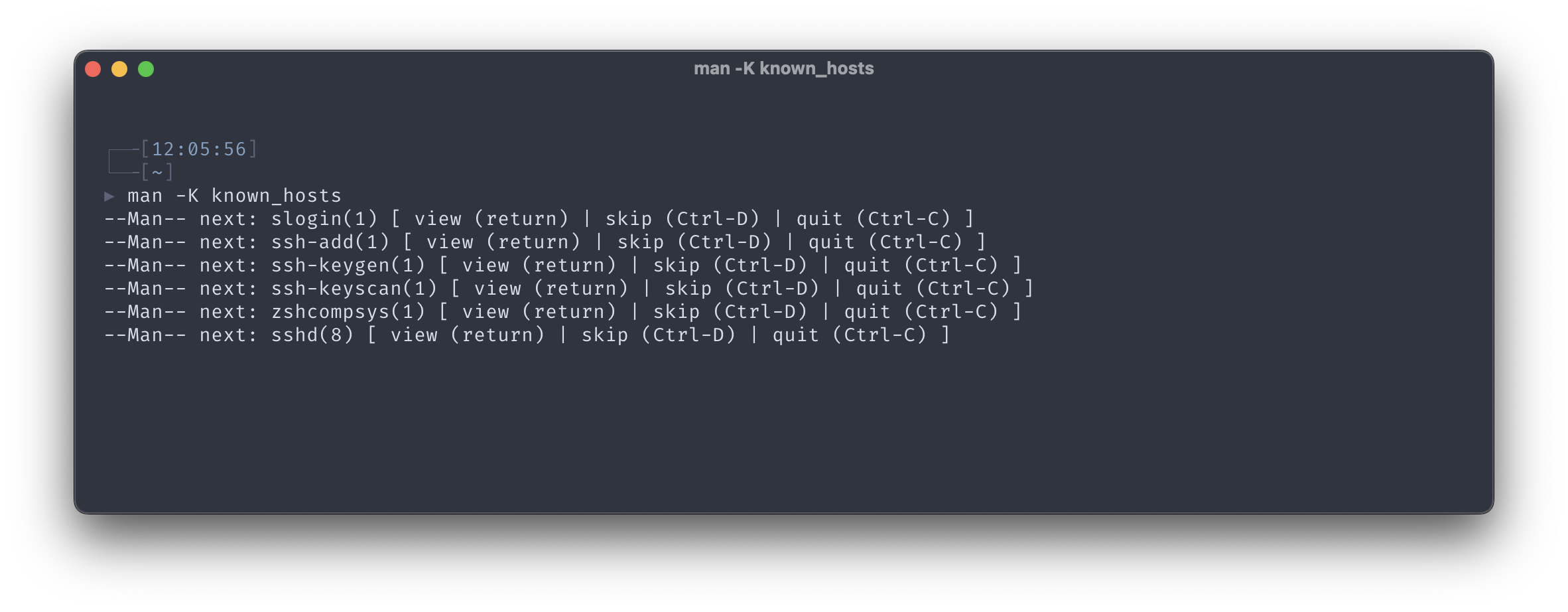
A bit inconvenient, so I may find a workaround eventually.
tldr
Despite all the above, sometimes you don’t want to trawl through a manpage for minutes to piece together a comprehensive command, flag-by-flag. In that case, the tldr project gives you a short synopsis and a list of example commands instead.
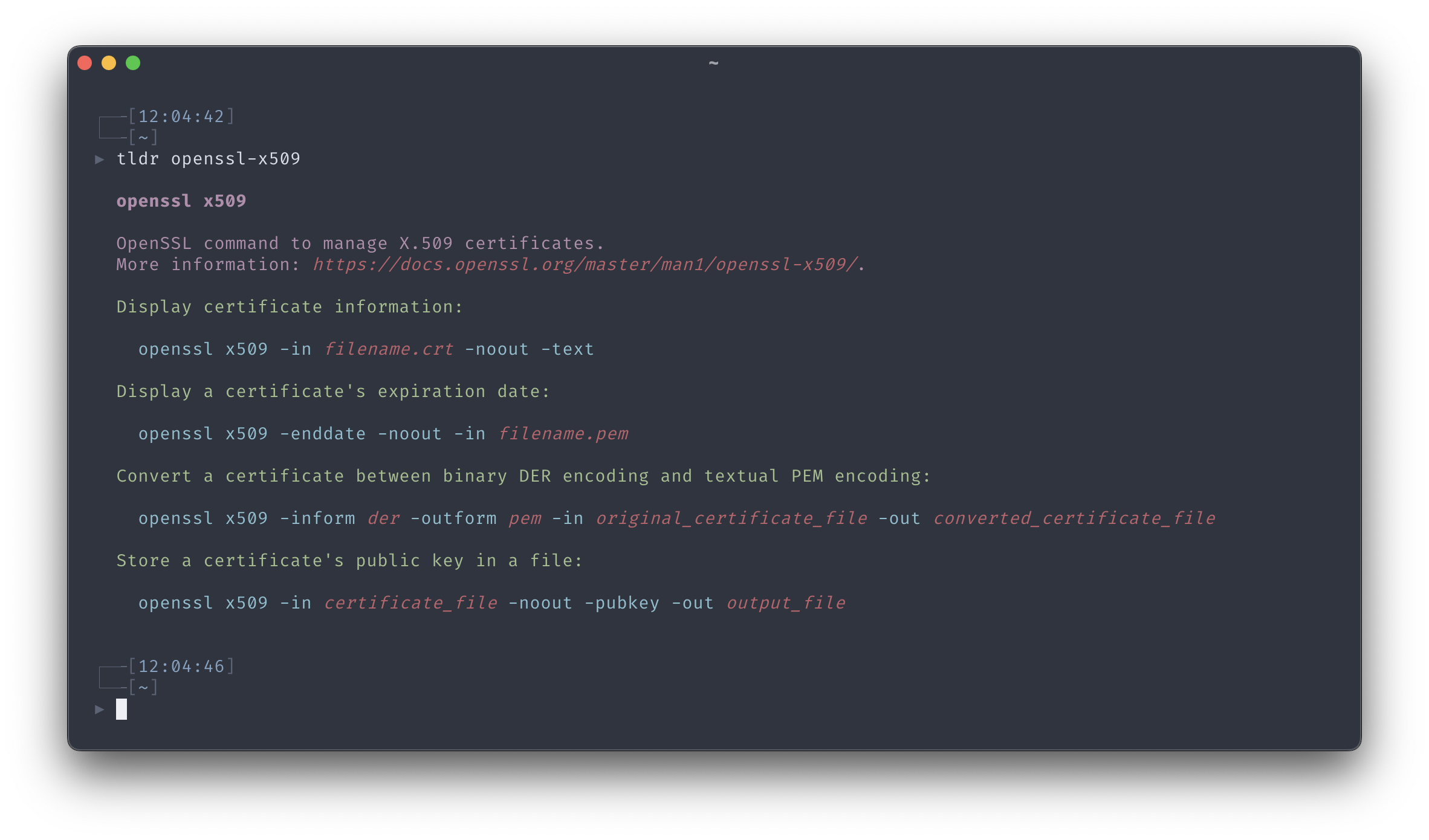
While the front page instructions recommend installing it through npm, thankfully there’s a client written in Rust called tlrc. It’s available through Homebrew with brew install tlrc (be sure to update the tldr database with a tldr -u before using).
manpages on macOS
If you’ve noticed that your man does not have a status prompt at the bottom of your terminal, it’s likely that you’re using the bundled version of man on macOS.
Bundled:
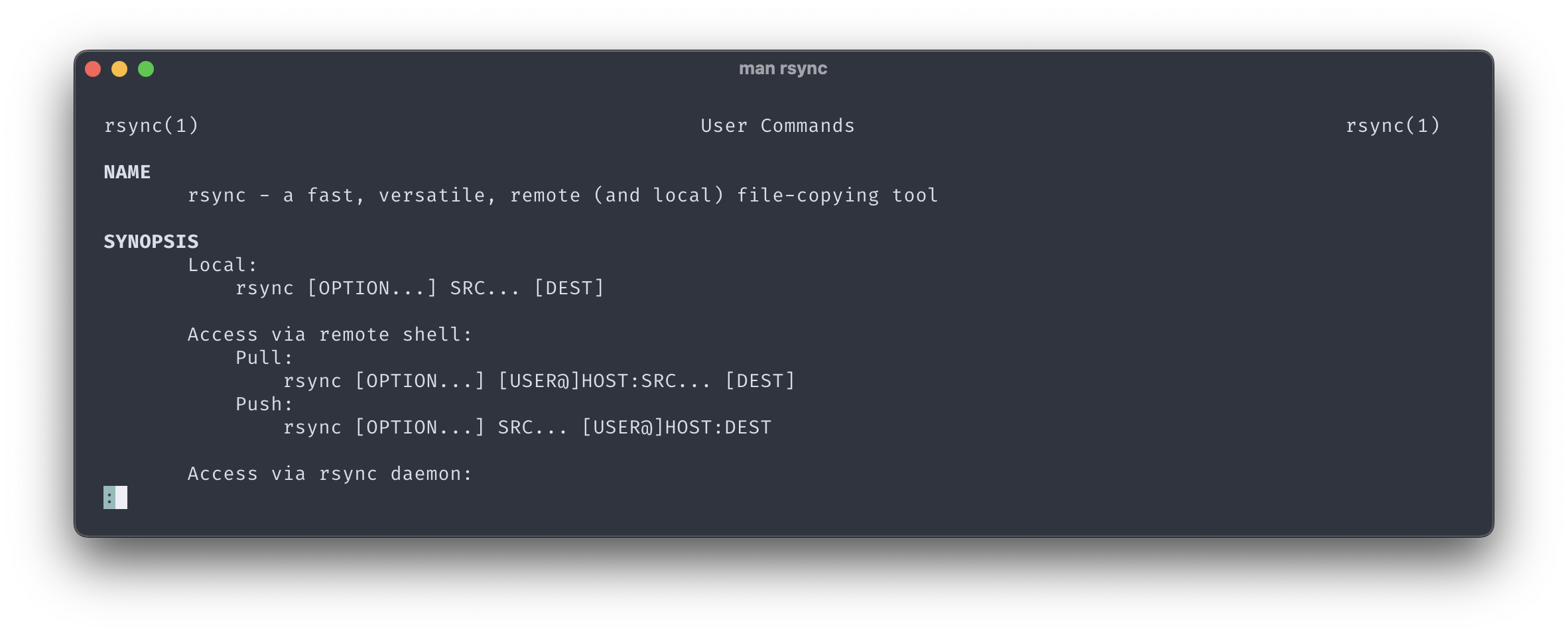
Modern:
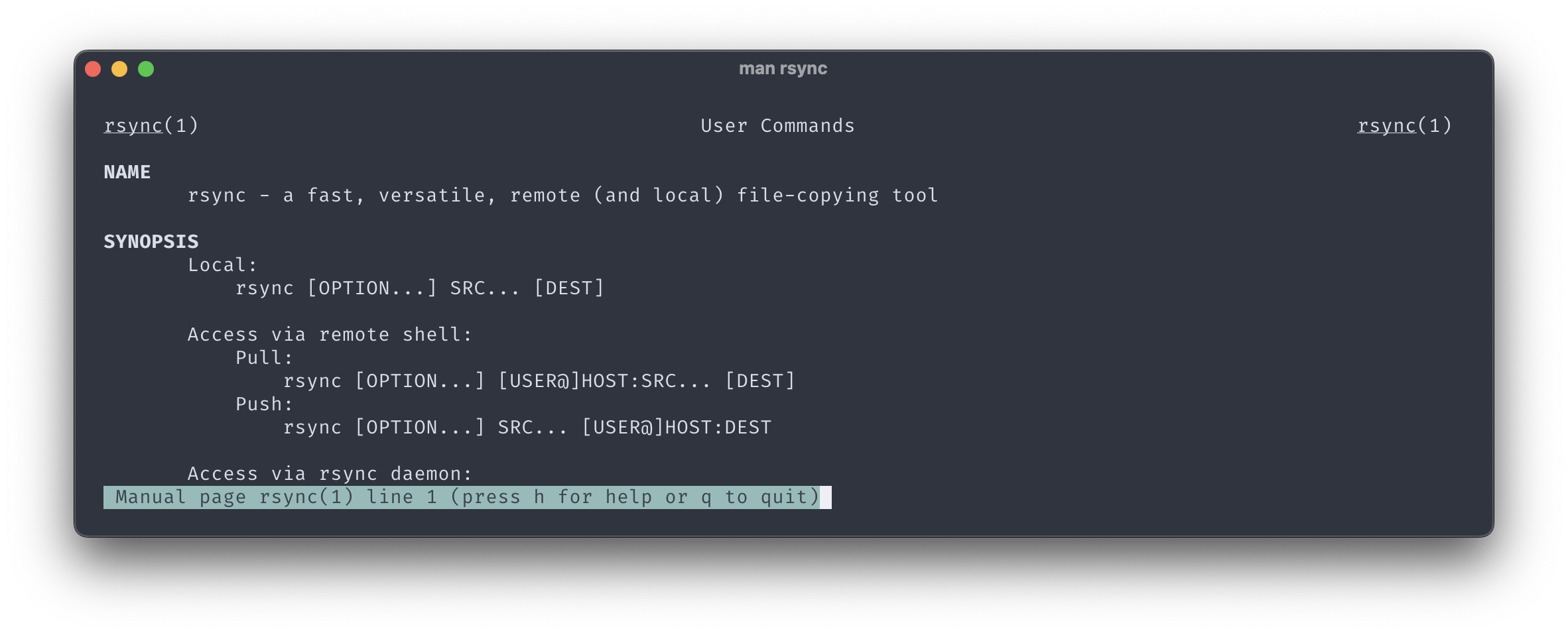
The default version of man installed on macOS is frequently out of date and based on BSD. The more modern implementation that is normally seen on Linux machines is not man, but another implementation called man-db.
Installation can be done through Homebrew:
1 | brew install man-db |
However, this will be installed as gman to avoid breaking compatibilty with your default installation of man. To make it your default, export the path & its manpath in your shell configuration file, eg., ~/.zshrc:
1 | export PATH="/opt/homebrew/opt/man-db/libexec/bin:$PATH" |
strange bugs with hyphens
While trying to search flags with hyphens, I was confused why less refused to match them especially if they were between letters. After some digging around, this StackOverflow post revealed the issue: the manpages on my mac are being rendered with non-ASCII characters.
I could validate this by running the following command:
1 | LC_COLLATE=C LESS='+/[^ -~]' man rsync |
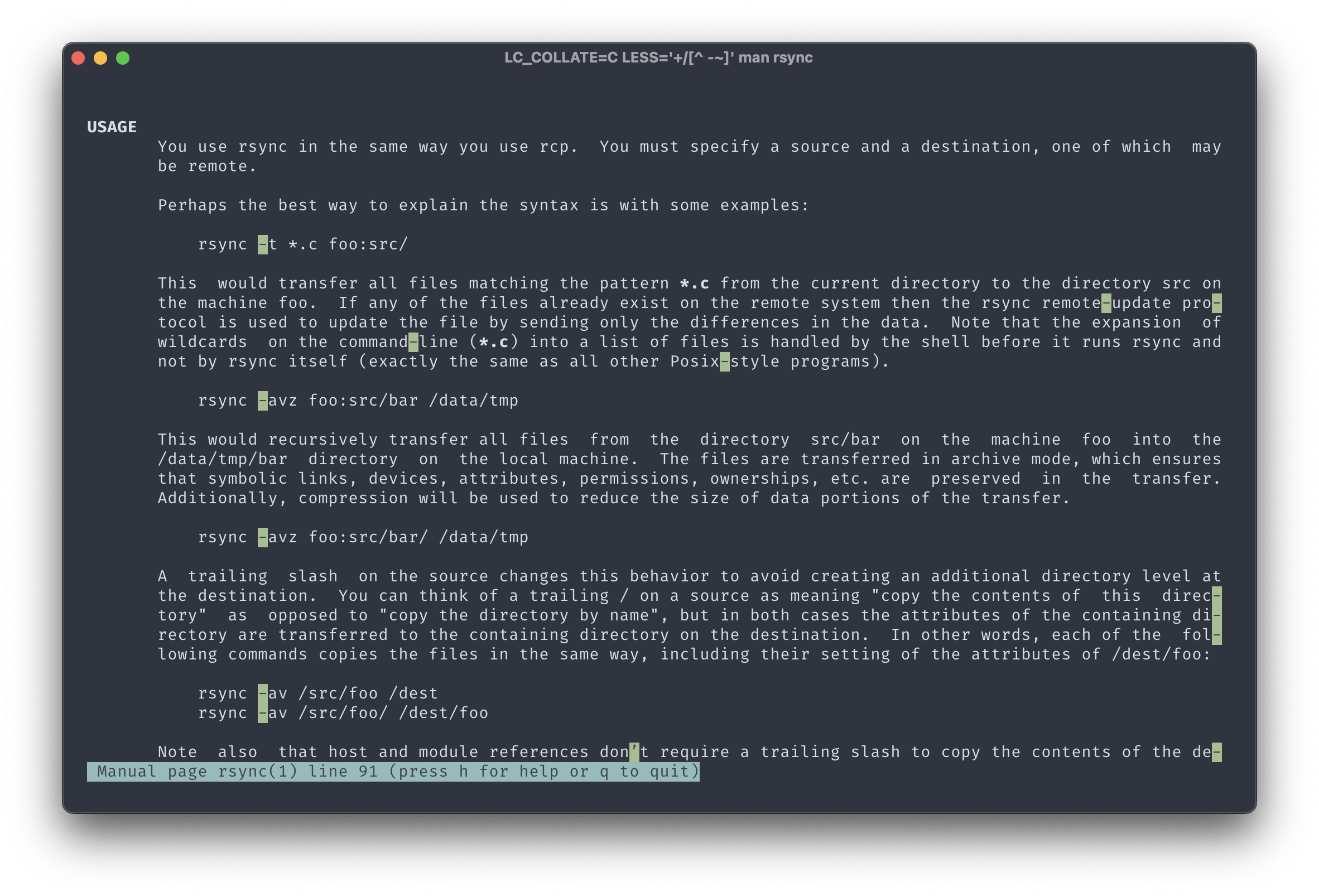
Every single highlight is a non-ASCII character.
While a bit inelegant, I re-aliased man such that it forces it to use an ASCII character set, as specified in the post:
1 | alias man="LC_CTYPE=C man" |